Organize Your Training
Team & User Management
Create teams, assign granular roles, bulk import users via CSV, and manage access permissions across your entire training organization — all from a single dashboard.
Key Benefits
- Bulk User Import
- Upload hundreds of users at once via CSV. Automatically create accounts, assign teams, and trigger Thinkific enrollment.
- Role-Based Access Control
- Define custom roles with granular permissions. Control who can view reports, manage users, upload files, and more.
- Team Switching
- Users who belong to multiple teams can switch context seamlessly without logging out or using separate accounts.
- Shareable Signup Links
- Generate signed signup links that let new users self-register and automatically join the correct team.
- User Impersonation
- Administrators can impersonate users to troubleshoot issues or verify the experience without needing their credentials.
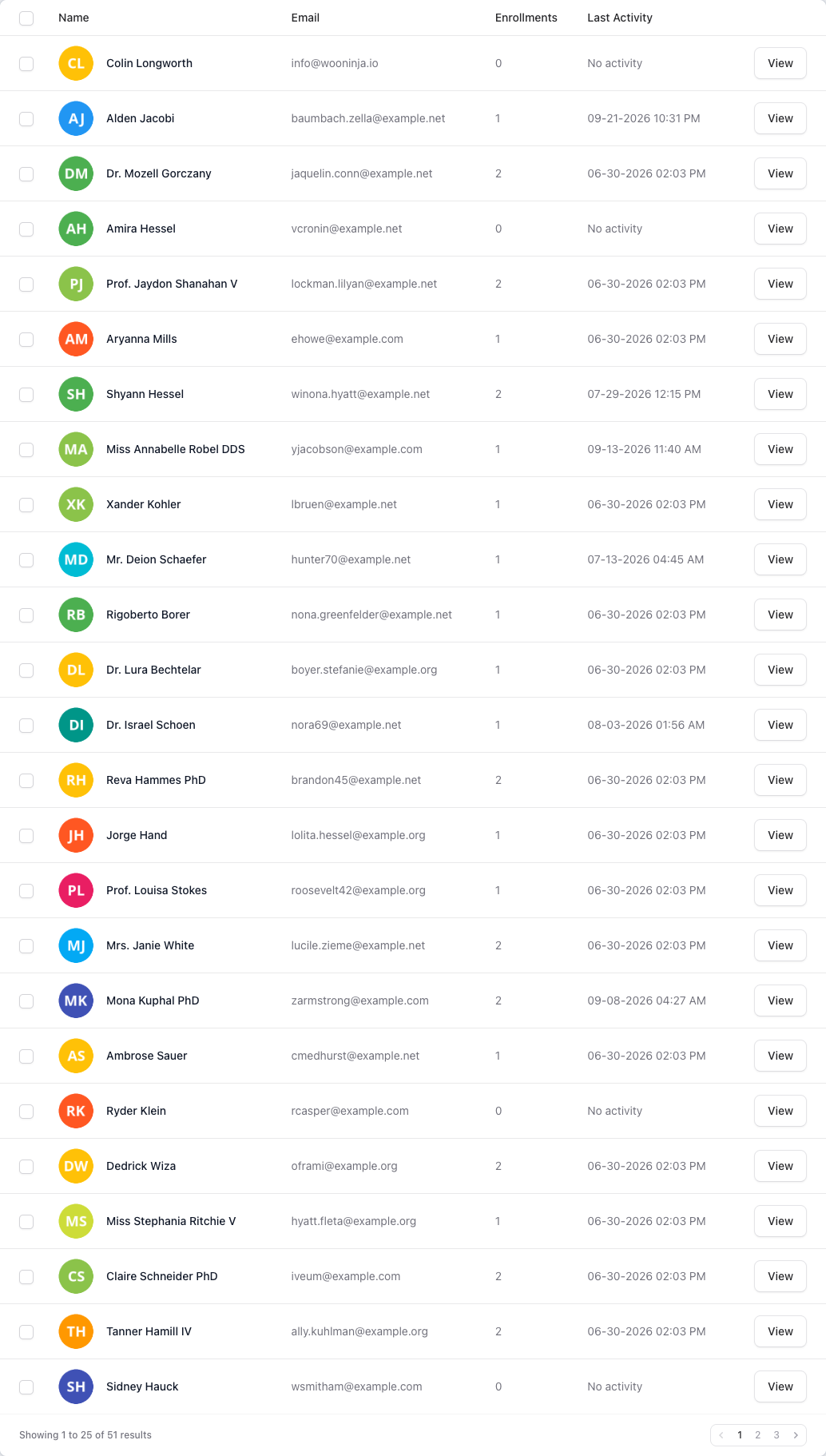
How to Bulk Import Users via CSV
Step-by-step guide to import multiple users at once using a CSV file, automatically assigning them to teams and courses.
What You'll Need
- CSV file with user data
- B2B Dashboard admin access
Download the CSV Template
Navigate to the Users page in B2B Dashboard and click Import Users. Download the CSV template to ensure proper formatting.
Fill in User Data
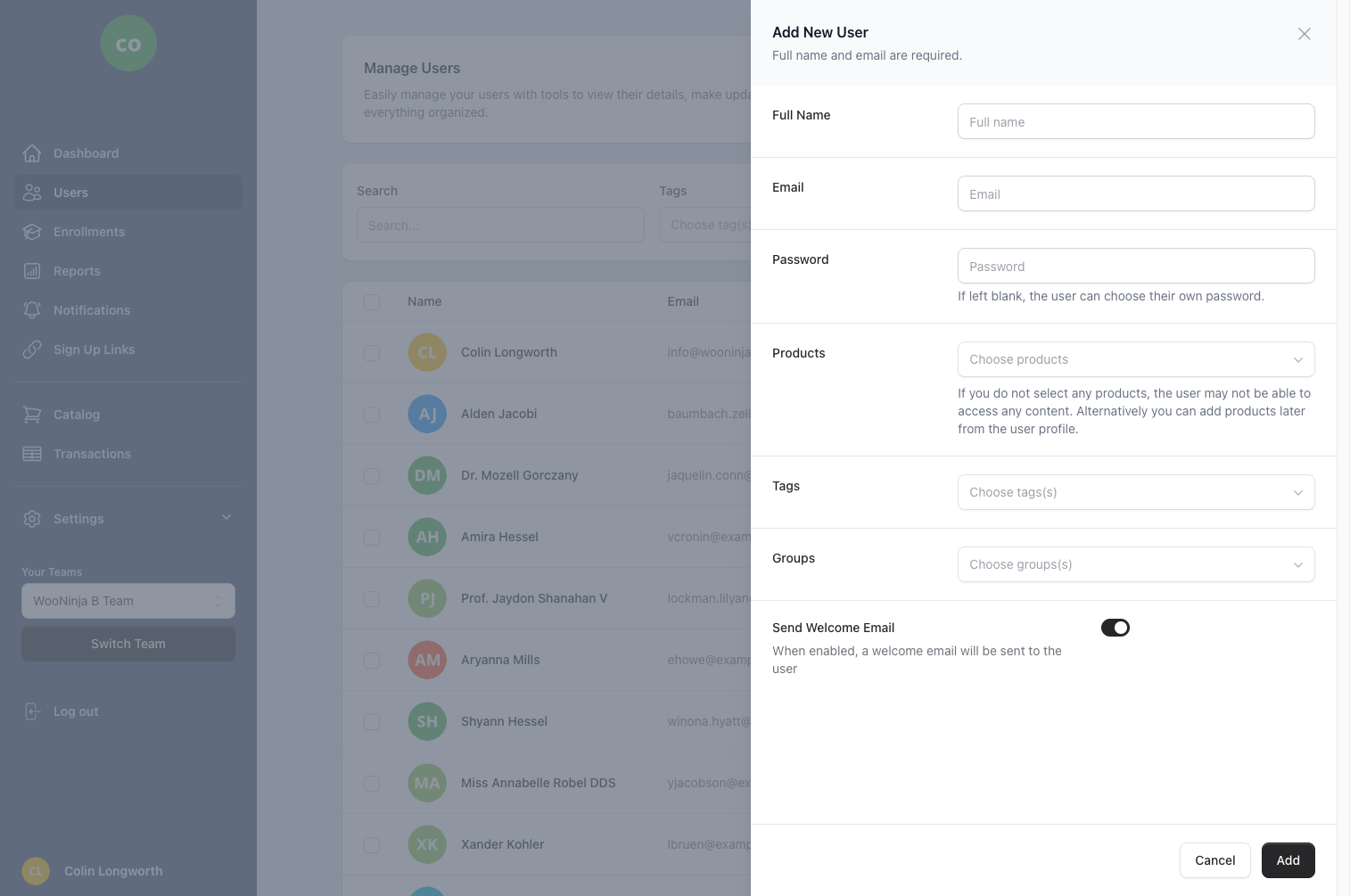
Open the template and add your user information including name, email, team assignment, and role.
Save as UTF-8 CSV
Save your file in CSV format with UTF-8 encoding to ensure special characters are handled correctly.
Upload the File
Click the Import Users button and select your CSV file to begin the upload process.
Review Import Preview
Check the preview for any errors or validation issues before confirming the import.
Confirm and Monitor
Click Confirm Import to process the users. Monitor the progress indicator as users are created and enrolled.
Estimated time: 5 minutes
Frequently Asked Questions
- What is team-based user management?
- Team-based user management organizes your learners into logical groups such as departments, client organizations, or project teams. Each team can have its own administrators, course assignments, and reporting. This structure makes it easy to manage training at scale while maintaining clear boundaries between different groups.
- How do user roles work in B2B Dashboard?
- B2B Dashboard supports granular role-based access control. You can define custom roles with specific permissions for viewing reports, managing users, uploading files, accessing billing information, and more. Standard roles include Administrator, Manager, and Learner, but you can create custom roles tailored to your organization's needs.
- Can a user belong to multiple teams?
- Yes, users can be members of multiple teams simultaneously. This is useful for cross-functional training or when an individual needs access to resources from different departments. Users can switch between team contexts seamlessly without logging out, and their permissions adjust automatically based on the active team.
- How do I invite users to join a team?
- You can invite users via email directly from the team management interface, or generate shareable signup links that automatically assign new users to the correct team. For bulk invitations, use the CSV import feature to add multiple users at once with pre-assigned teams and roles.
- What is user impersonation and when should I use it?
- User impersonation allows administrators to temporarily view the platform as another user without needing their password. This is invaluable for troubleshooting user-specific issues, verifying access permissions, or assisting users who are having difficulty. All impersonation actions are logged for security and audit purposes.
See It In Action
Related Features
Ready to streamline your training management?
Get started with B2B Dashboard and take control of your Thinkific training programs today.